Vertical Slice: Enter The Gungeon
Me and 3 other developers were tasked to recreate a 10-second clip from a game of our choice. We ended up choosing Enter The Gungeon. I did the player movement and animation systems.
This project used trello for task management and github for source controll.
Showreel
My contribution to the project
- Player movement
I created the basic player movement
- Dodgeroll mechanic
The dodgeroll is an important mechanic in Enter The Gungeon, and since I was doing the player animations i also decided to create the dodgeroll.
- Player animations
I set up the player animations using Unity's Blend Tree system
The features i am most proud of are the dodgeroll and the player animation system. To make the dodgeroll i used a coroutine, which I had not used much in the past, so it taught me alot about that. For the animation system I also used a few features I had not used before which have been quite usefull to me going forward.
Player Animations
Prior to this project I had little experience in working with Unity's animation system so i set out to find good ways to implement Enter The Gungeon's animations. Unlike some top-down games, Enter The Gungeon doesn't just rotate the player towards to cursor but instead has four different sets of animations depending on the direction of the player. This meant i had to find a way to get the direction of the cursor compared to the player and then use that value to determine what animations to play.
Cursor Direction

Getting the cursor direction wasnt much of a challenge. I simply used the script used for aiming the gun to get the cursor position, and then subtracted the value from the player position to get the difference. I the normalized the value so that they would only range between 0 and 1 to get consistent values. I then created two Float values called MousePos Z and MousePos X in the animator and then gave them the Z and X values I calculated before.
Blend Tree
Now that I had the cusor position values I needed to find a way to actually make the animations work with them. I struggeled with coming up with a way to do this at first, however I soon found Unity already had the perfect system for it: Blend Trees.
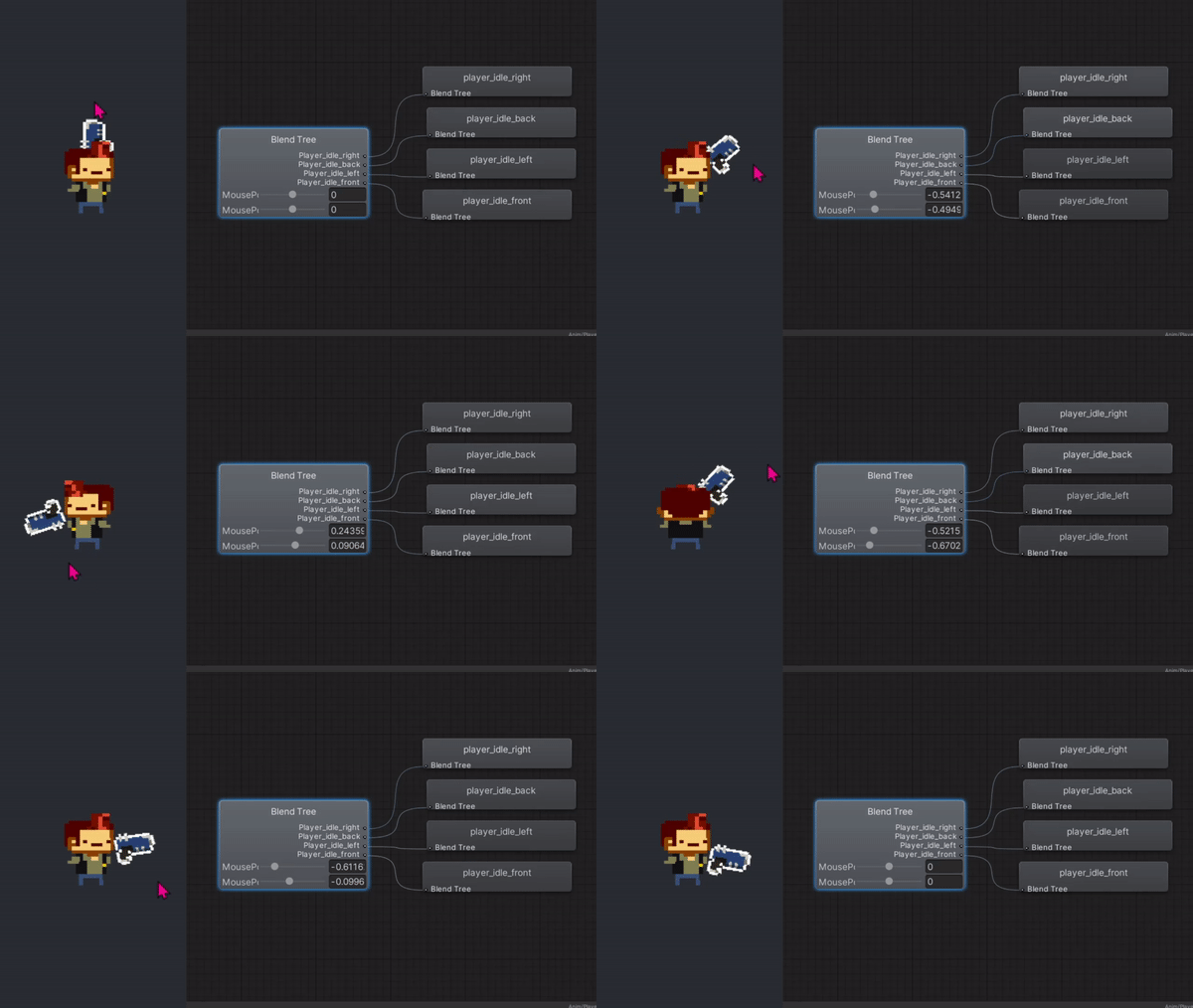
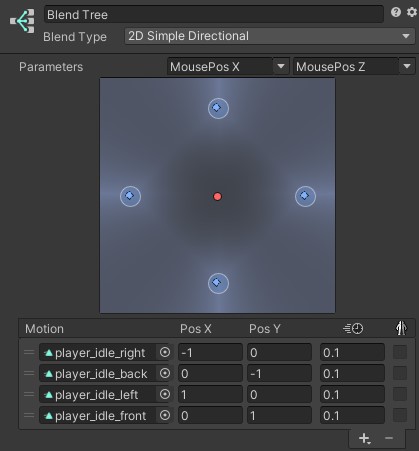
This is the blend tree itself. I give it the MousePos values and the four animations. I then give every animation in the blend tree a position value corresponding with their direction. For example, the left animations are given a value of 1 on the X-axis as that is to the left of the player in the game.
The blend tree will then check to see which animation's postition values are closest to the MousePos values are play the animation. This same blend tree setup is used for the idle, walking and dodgeroll animations.
What i learned from this project.
- The use of coroutines in Unity.
Before this project I had little experience with coroutines, and while I did not use them much in this project, I did learn how usefull they can be and started using them much more afterwards.
- How to use Unity's animation system.
This the first project where i really spent time on an animation setup. I found that while the animation system can be finicky at times, its also very robust and works really well if you know how to use it.
- The importance of planning out features before you start to create them.
When we started to put together our seperate systems we often ran into the problem that they didnt work together for one reason or another. This caused us to spend alot of unneccesary time integrating our systems that would have been better spent polishing them. If we had spent a bit of time planning these systems out beforehand and made them less dependant on eachother we would have had saved ourselves alot of trouble.